Profile
The Profile page is at goveda.com/settings/profile. It is divided into three cards: your profile information, your password (if applicable), and email notification preferences.
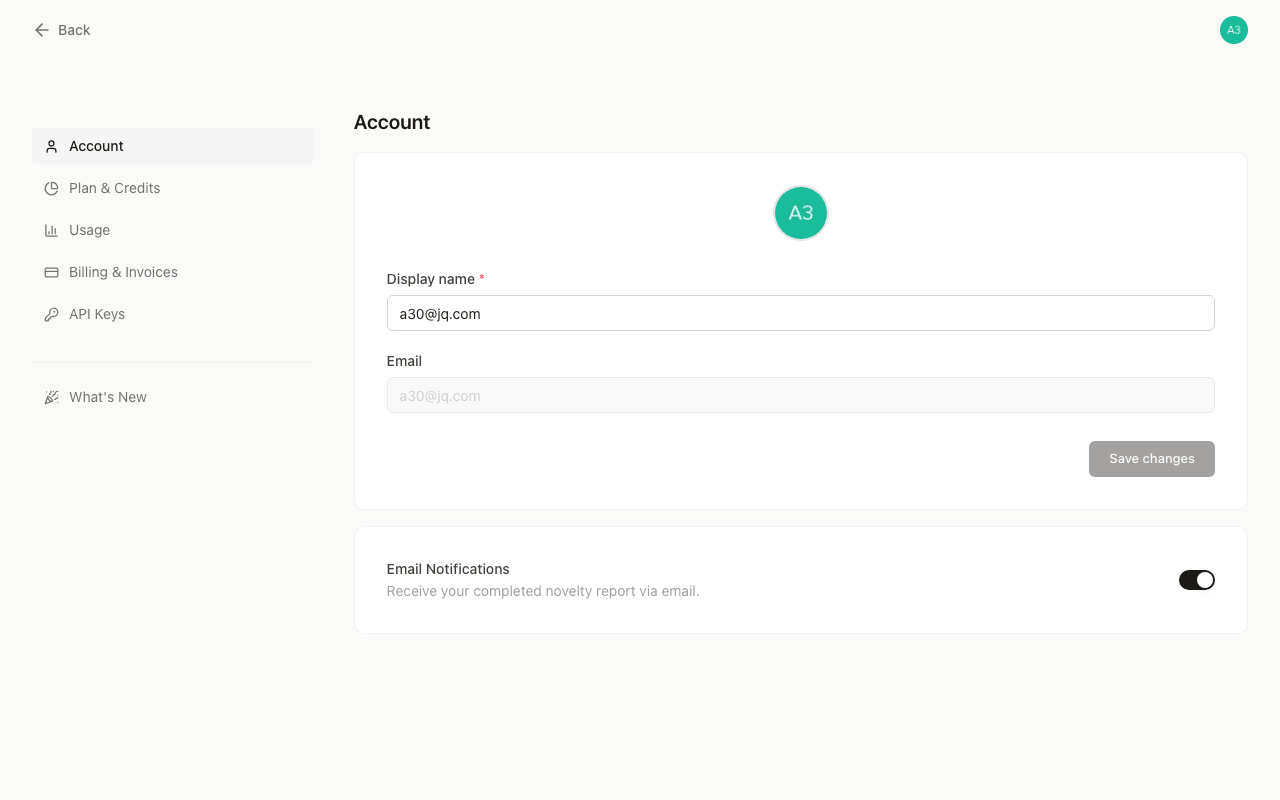
Display name and avatar
Your display name appears in the navbar and on any shared content. To change it:
Upload a new avatar
Click on the avatar circle at the top of the profile card. A file picker opens; select a JPG, PNG, or WebP image from your device.
Edit your display name
Edit the Display name field. The field accepts up to 100 characters and cannot be left blank.
Save your changes
Click Save changes.
Both the avatar and name are saved in a single request when you click Save changes. The button is disabled until you have actually changed something, so you will not accidentally overwrite your current values.
Your email address is displayed read-only and cannot be changed directly in GoVeda. If you need to update your email, contact us at info@goveda.com.
Password reset
If you signed up with an email address and password rather than a social login, a Password card appears on the page. Click Send reset email to receive a password reset link at your registered address.
After sending, a 60-second cooldown prevents repeated requests. The button shows the countdown (“Sent · resend in 42s”) and re-enables automatically when the timer expires.
If you signed in with Google (or another social provider), no password card is shown — your password is managed entirely by that provider.
Email notifications
The Email Notifications toggle controls whether GoVeda emails you when a novelty report finishes generating. Reports can take a few minutes depending on complexity, so turning this on lets you step away without polling the page.
The toggle saves immediately — there is no separate save button for this setting.