Patent Viewer
The Patent Viewer is where you read and analyze patents. Every patent in GoVeda opens here, whether you arrive from search results, a report, or a direct URL.
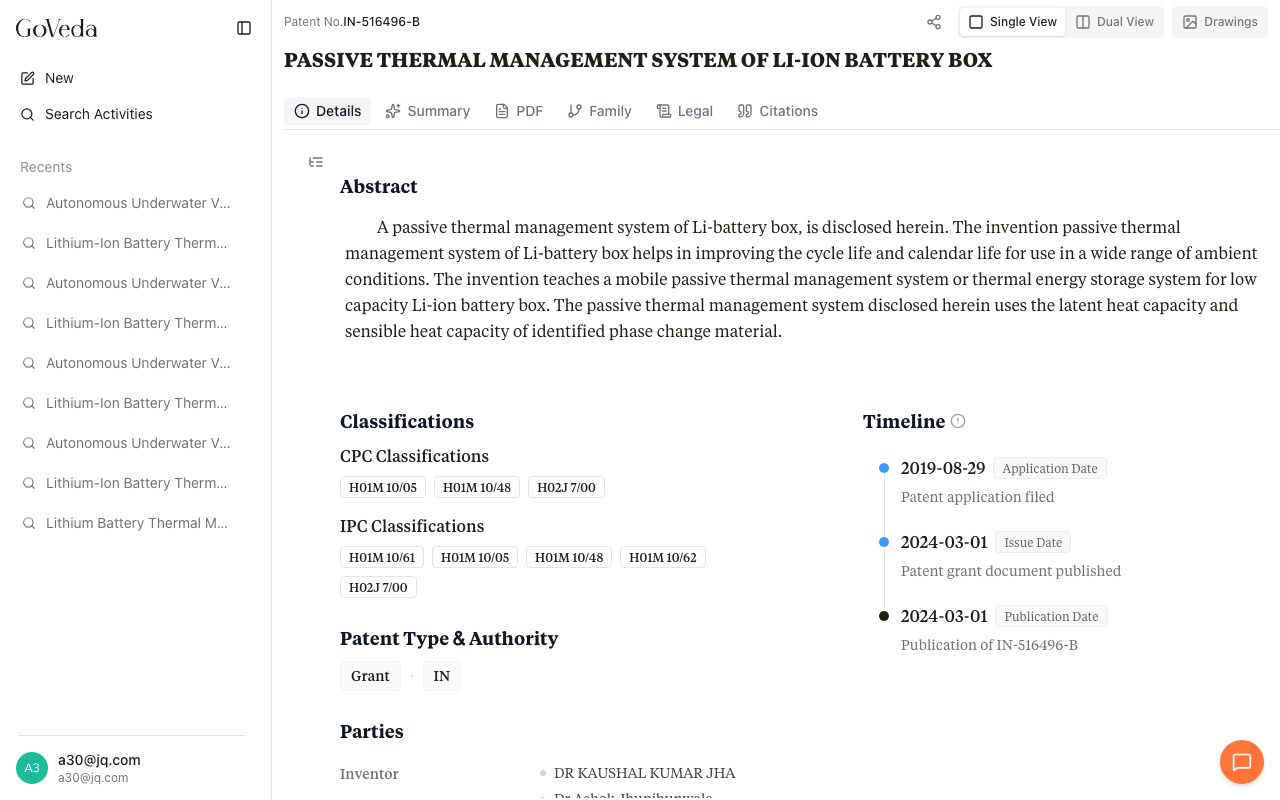
Tabs
The tab bar across the top organizes the patent into focused views:
| Tab | What it shows |
|---|---|
| Details | The full patent document: abstract, classifications (CPC/IPC), assignees and inventors, date timeline, claims, and description. A floating table of contents lets you jump between sections. |
| Summary | An AI-generated analysis covering the technical problem, proposed solution, and key claims. Inline citation badges link back to the exact passages in the patent text. |
| The original patent office document rendered in-browser with download support. | |
| Family | Related filings across jurisdictions that share a common priority. Each row shows publication number, dates, legal status, and expiry. |
| Legal | Legal event history from INPADOC: assignments, fee payments, grants, lapses, and appeals. |
| Citations | Prior art cited by this patent (backward citations), non-patent literature, and later patents that cite it (forward citations). |
Drawings
The Drawings toggle in the header opens a side panel with the patent’s figures. It stays open alongside whichever tab you’re reading, so you can view claims and figures at the same time. On mobile, Drawings appears as a separate tab.
Layout options
- Single View fills the screen with one tab at a time.
- Dual View splits the screen into two independent panels, each with its own tab bar. Read the description on the left while viewing the summary or citations on the right.
Your layout preference is remembered per patent.
Chat
Click the Chat icon in the header to open a conversation panel. Ask questions about the patent in plain language and get answers grounded in the patent text, with citation links you can click to verify. Chat is available to all logged-in users.
How to open a patent
- From search results. Click any patent title or UCID.
- From a report. Click a patent card. The viewer shows a breadcrumb back to the report.
- By URL. Navigate to
/patent/[UCID](e.g.,/patent/US-12345678-B2), or type a patent number into the search bar and select from autocomplete. - From Citations or Family tabs. Click any UCID to open that patent.
When you arrive from search results, navigation arrows let you step through results without returning to the list.
Sharing
The Share button in the header copies a link that lets anyone view the patent without signing in.
In this section: