Usage
The Usage page is at goveda.com/settings/usage. It shows a paginated log of every operation that has deducted credits from your account, along with the timestamp, operation type, and credit amount for each record.
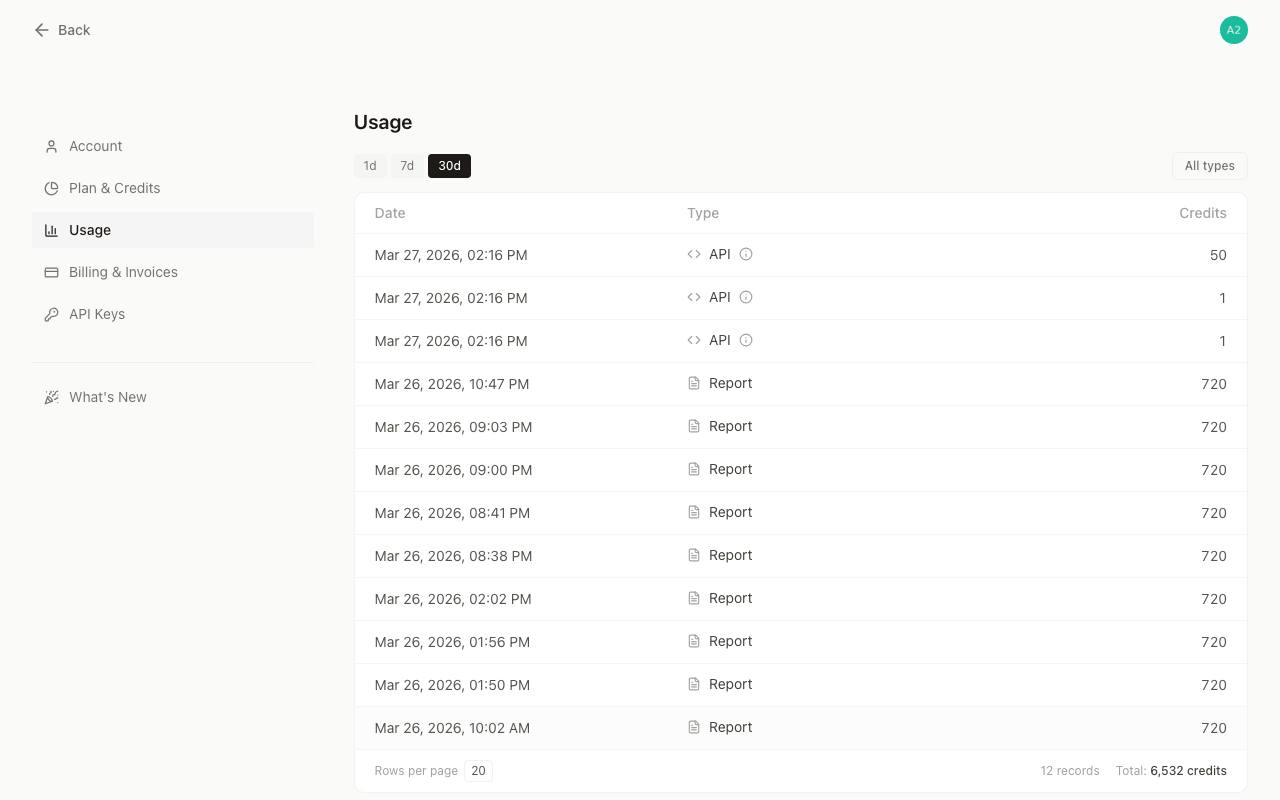
Time range
Three quick-select buttons at the top left let you narrow the log to a recent window:
| Button | Window |
|---|---|
| 1d | Last 24 hours |
| 7d | Last 7 days |
| 30d | Last 30 days (default) |
Switching the range reloads the list and resets you to page 1.
Filtering by type
A type filter dropdown on the right side of the toolbar lets you focus on a specific category of operation:
All types
Every record in the selected time window.
Reading the records
Each row in the table shows:
- Date — when the operation ran (shown in your local timezone)
- Type — the category label with a small icon (Search, Report, or API)
- Credits — how many credits the operation consumed, formatted to two decimal places
On mobile the table collapses into a card layout with the same information.
API records
API records carry a tooltip (the info icon next to the label) with additional detail:
- Operation name — e.g., “Patent Fetch”, “Semantic Search”, “Prior Art Search”, or “Novelty Report”
- Description — a short summary of what the API call does
- Quantity — the number of items returned or processed (patents fetched, results returned, reports generated)
- Credits — the credit cost for that specific call
Hover over or tap the info icon next to any API record to see these details.
Summary row
At the bottom of the records table, a summary bar shows:
- Rows per page — a dropdown to change how many records appear per page (20, 50, or 100)
- Total records — the count of records matching your current time range and type filter
- Total credits — the sum of credits consumed by the records on the current page
Note that the credits total reflects the current page only, not the full filtered set. Use a larger page size if you want a broader sum.
Pagination
When the filtered results span multiple pages, a pagination control appears below the table. Click a page number or the next/previous arrows to navigate. The page size you selected in the summary bar is remembered while you stay on the settings page.
Free plan note
If you are on the free plan, a prompt below the table invites you to upgrade to GoVeda Pro. Pro includes full novelty reports, higher credit limits, and API access. See Plan & Credits for details.