API Keys
API keys are how you authenticate requests to the GoVeda API. You can create up to 10 keys per account. API key management requires a Pro subscription.
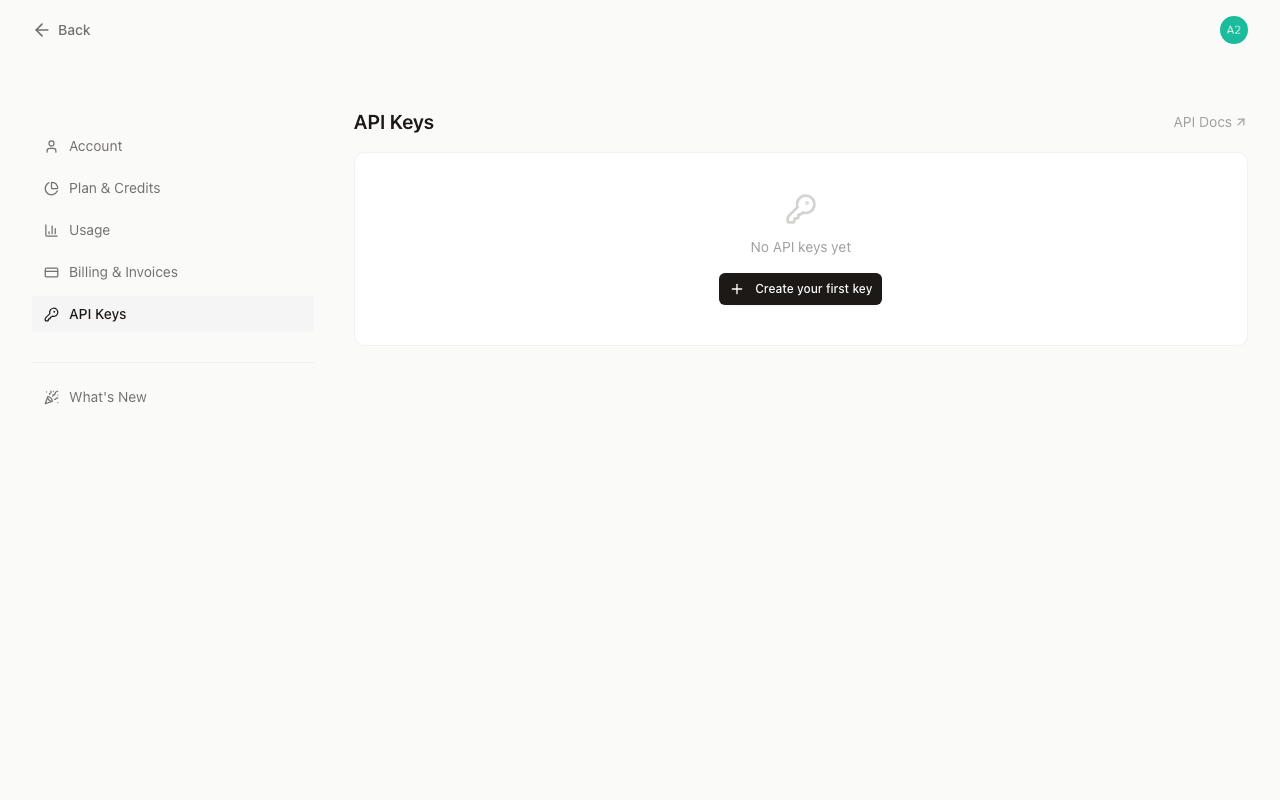
Go to Settings > API Keys to manage your keys.
Create a key
Go to API Keys settings
Go to Settings > API Keys.
Click Create key
Click Create key.
Name your key
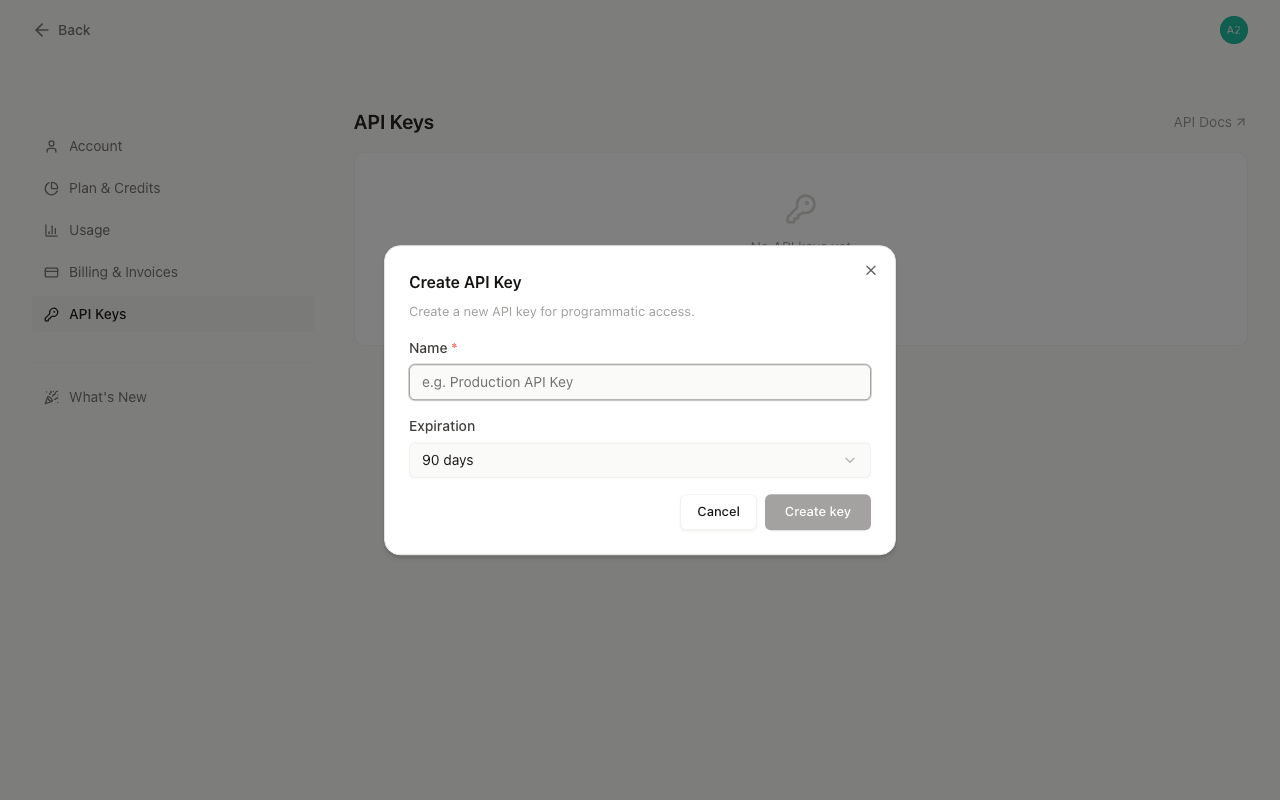
Enter a name for the key (required, up to 100 characters). Use something descriptive like “Production” or “CI Pipeline” so you can identify it later.
Choose an expiration
Choose an expiration: 30 days, 60 days, 90 days, or No expiration.
Confirm creation
Click Create key.
The full key value is displayed only once after creation. Copy it immediately and store it in a secure location (a password manager or secrets vault). The key value cannot be retrieved after you close the dialog.
Key format
Keys have the format sk_goveda_.... To authenticate a request, pass the key in the X-API-Key header:
X-API-Key: sk_goveda_your_key_hereThe keys list shows a masked version of each key (e.g. sk_goveda_Ab...wxyz) so you can identify which key is which without exposing the full value.
Key properties
Each key has:
- Name — A label you assign. You can rename a key at any time.
- Status —
ActiveorExpired. Expired keys cannot authenticate requests. - Created date — When the key was created.
- Expires — The expiration date, or “Never” if no expiration was set.
Rename a key
Click the pencil icon next to a key, update the name, and click Save changes. The key value and expiration are not affected.
Key limits
Each account can hold a maximum of 10 active keys at a time. If you reach the limit, delete an existing key before creating a new one.
Delete a key
Click the trash icon next to the key, then confirm the deletion. Deletion is permanent and immediate. Any application or script using that key will lose API access instantly. There is no recovery.
Security practices
If you suspect a key has been exposed, rotate it immediately: create a new key, update your application, then delete the compromised key. A leaked key grants full API access to your account and credits.
- Copy the key immediately after creation. The full value is shown only once.
- Use one key per environment. Keep production, staging, and development keys separate. If one key is exposed, you can revoke it without affecting other environments.
- Set an expiration for keys used in automated workflows. Keys without an expiration remain valid indefinitely, which increases the impact of a leak.
- Delete keys you no longer use. Inactive keys that remain active are unnecessary risk.
- Store keys in environment variables or a secrets manager. Never hardcode a key in source code or commit it to a repository.