History
GoVeda automatically saves your activity so you can return to past work without re-running searches or regenerating reports. History is tied to your account and requires you to be signed in.
What gets saved
GoVeda automatically records your activity as you use the platform:
- Searches — semantic searches you run from the search bar
- Reports — patentability reports you generate
- Patent lookups — patents you open by entering a patent number directly in the search bar (patents opened from search results or reports are not recorded separately)
Where history appears
Sidebar
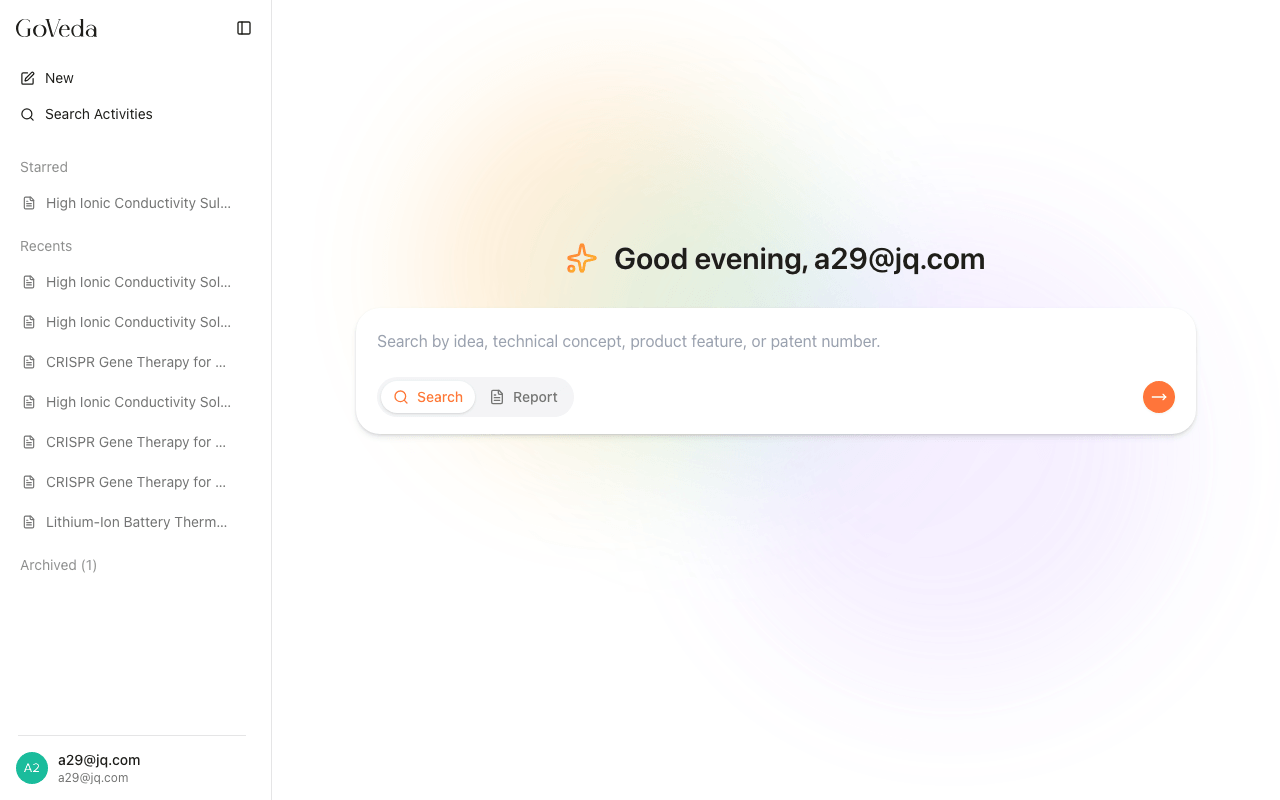
The history sidebar on the left side of the application lists your recent activity. It is organized into three sections:
- Starred — items you have pinned. This section only appears when you have at least one starred item.
- Recents — active items, sorted newest first.
- Archived — items you have archived to reduce clutter. This section shows the count of archived items and can be expanded or collapsed.
Each section can be collapsed by clicking its heading. GoVeda remembers whether each section was collapsed the last time you used it.
Search activities
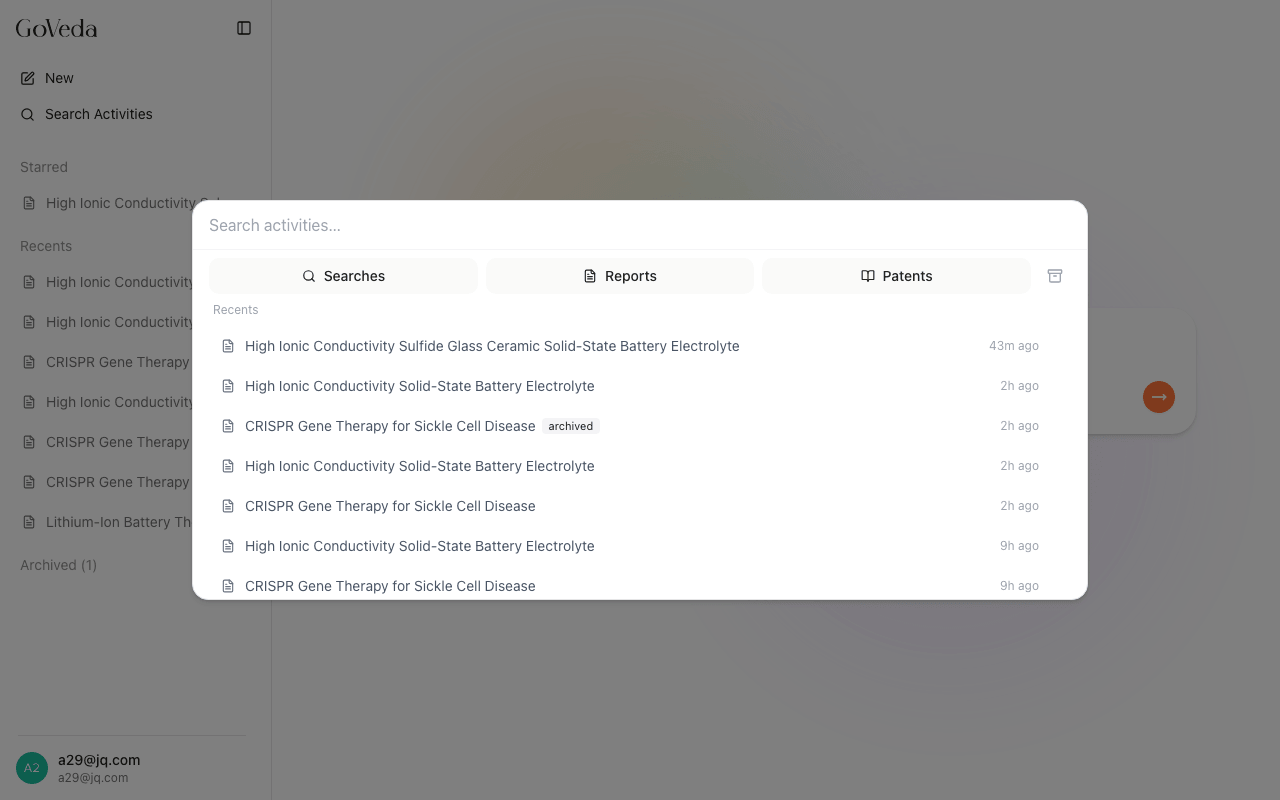
The sidebar includes a Search Activities button. Clicking it opens a dialog where you can search across all of your history by keyword and filter by type (Searches, Reports, Patents, or Archived).
Starring items
Starring an item pins it to the top of the sidebar under the Starred section, keeping it accessible regardless of how much new activity accumulates.
To star an item:
Hover over the item
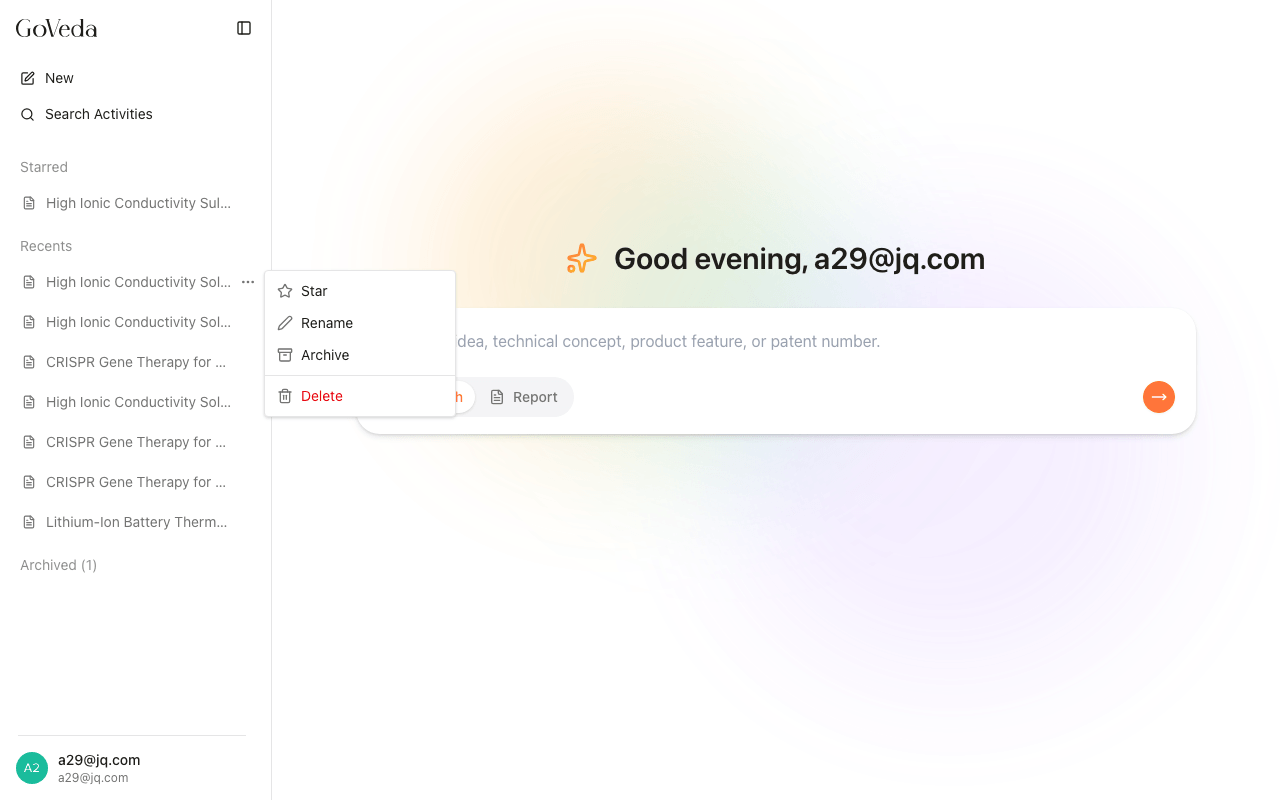
Hover over it in the sidebar. A three-dot menu button appears on the right.
Open the menu
Click the menu button.
Select Star
Select Star.
To unstar it, open the same menu and select Unstar. The item moves back to Recents.
Archiving items
Archiving moves an item out of Recents and into the Archived section at the bottom of the sidebar. This is useful for keeping your sidebar tidy while still being able to find older work. Archived items also appear in the Search Activities dialog under the Archived filter.
To archive an item:
Open the context menu
Hover over the item and click the three-dot menu.
Select Archive
Select Archive. The item moves to the Archived section immediately.
To bring an item back, expand the Archived section (or use the Archived filter in Search Activities), open the item’s menu, and select Unarchive. The item returns to Recents.
Archiving an item automatically unstars it. If you want to keep an item front and center, use Star instead of Archive.
Renaming items
You can give any history item a custom name to make it easier to identify.
Open the context menu
Hover over the item and click the three-dot menu.
Select Rename
Select Rename.
Enter the new name
Type the new name (up to 200 characters) and press Enter, or press Escape to cancel.
For patents, the item normally displays the patent’s UCID (for example, US-10123456-B2). After you rename it, your custom title is shown instead.
Renaming does not affect the underlying search, report, or patent. It only changes the label shown in your history.
Deleting items
Open the context menu
Hover over the item and click the three-dot menu.
Select Delete
Select Delete.
Confirm deletion
Confirm in the dialog that appears.
Deletion removes the item from your history view. It does not delete the underlying report or any data associated with the search. You can delete both active and archived items.
Account requirement
History is stored against your GoVeda account. If you are not signed in, your activity is not saved. To access history, sign in at goveda.com and go to the home page.