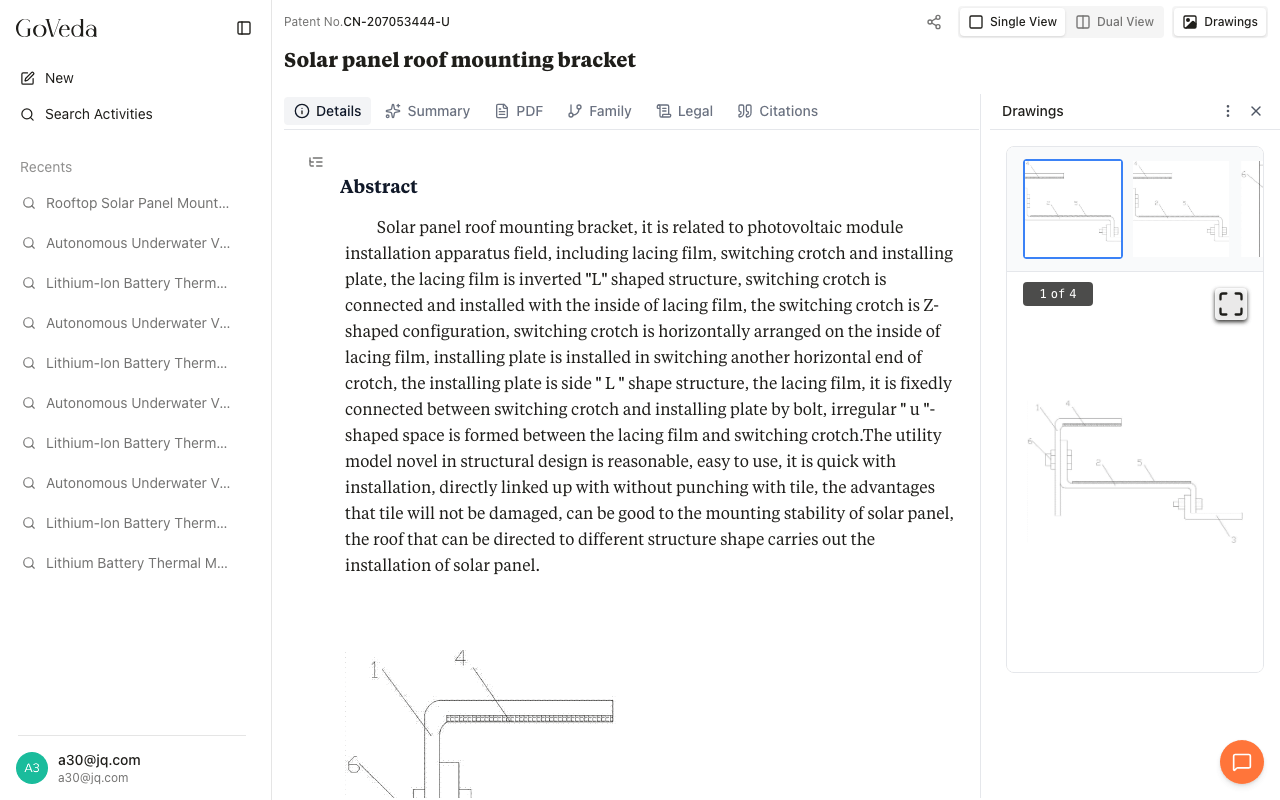
Patent Details
The patent viewer organizes a patent document into tabs across the top: Details, Summary, PDF, Family, Legal, and Citations. A Drawings toggle in the header opens a side panel with patent figures.
Details
The Details tab is the default view. It shows the full patent document in structured form.
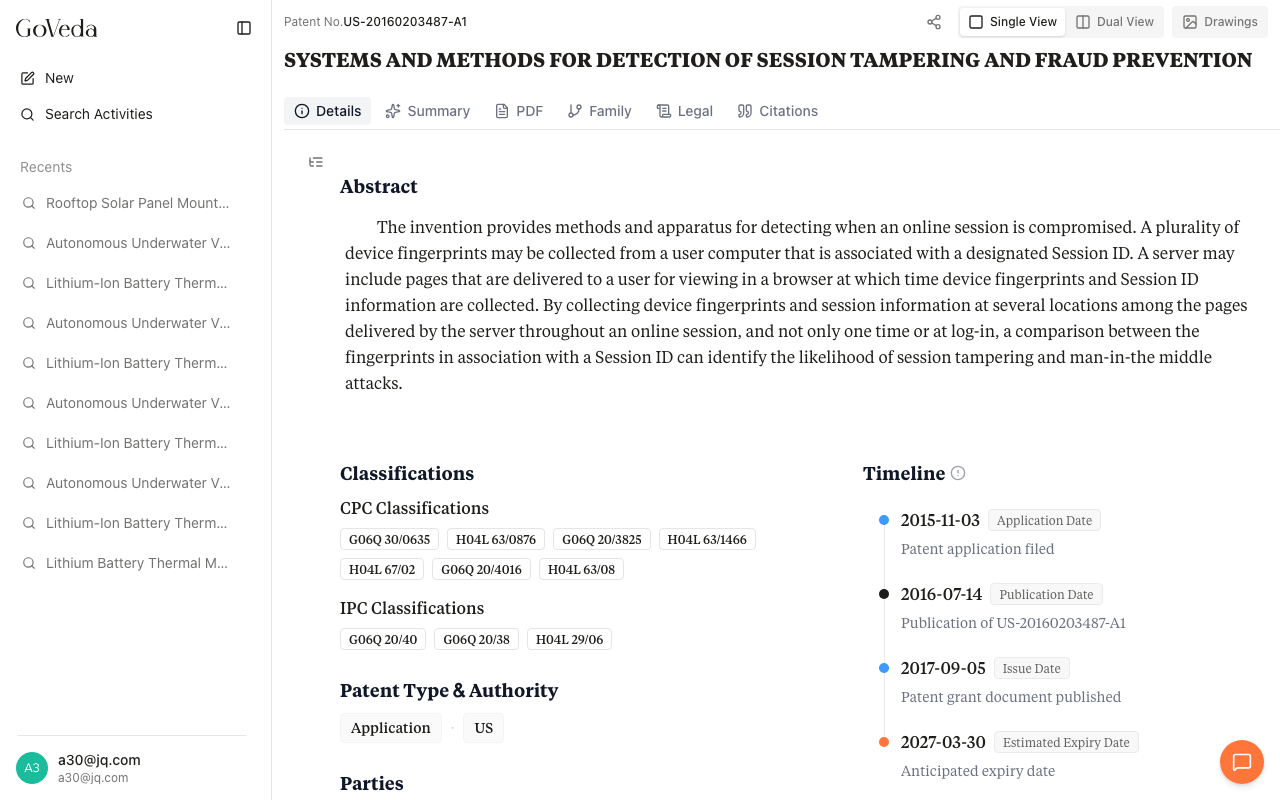
Abstract
The abstract appears at the top. For patents with structured content, the abstract is rendered as individual paragraphs. For older patents, it may appear as a single block of text.
When you open a citation from the AI Summary, any abstract paragraph that the summary cites is highlighted in blue with a numbered badge.
Overview
Below the abstract, the Overview section is laid out in two columns on wide screens.
Left column contains Classifications (CPC and IPC codes with hover descriptions), Patent Type and Authority, and Parties (Current Assignee, Original Assignee, and Inventors).
Right column contains the Timeline showing key dates: Application Date, First Publication Date, Issue Date, Publication Date, Estimated Expiry Date, and more. Blue dots mark filing events, orange dots mark expiry events.
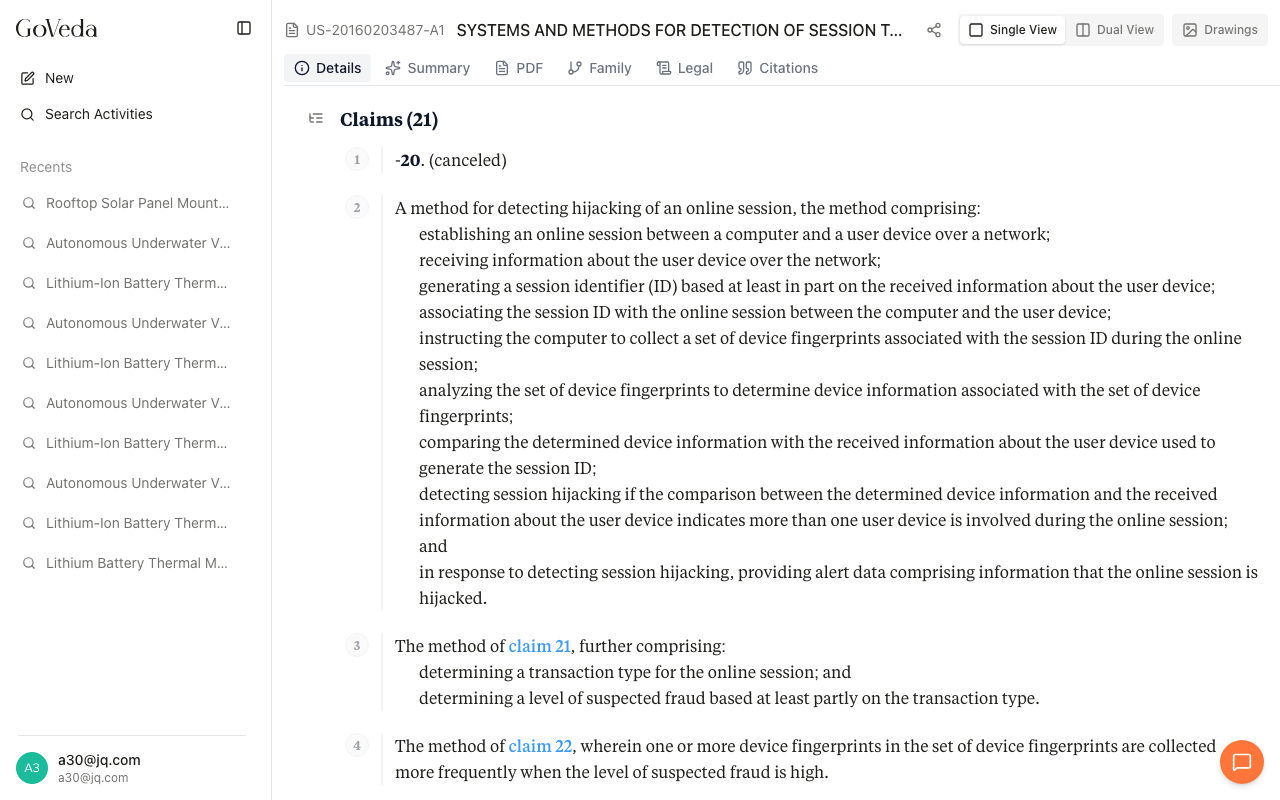
Claims
The Claims section lists every claim in the patent, numbered sequentially. Each claim has a number badge and a left border to separate it from neighboring claims. The total claim count appears in the section heading.
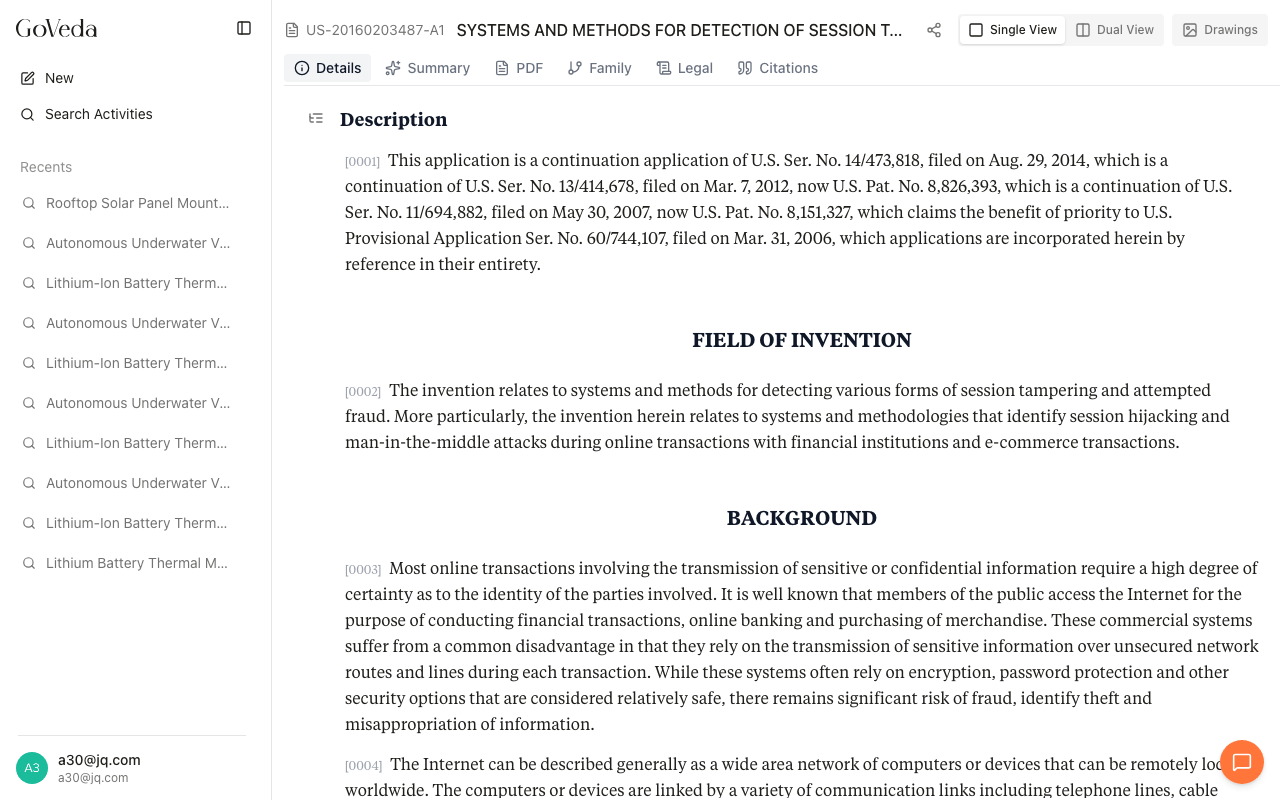
Description
The Description section contains the full specification text. For structured patents, this includes named subsections such as Field of the Invention, Background, Summary of the Invention, and Detailed Description, all rendered as flowing paragraphs.
Section navigation
On desktop, a small table-of-contents icon appears to the left of the content area. Click it to open a panel with links to Abstract, Overview, Claims, and Description. The active section updates as you scroll.
Summary
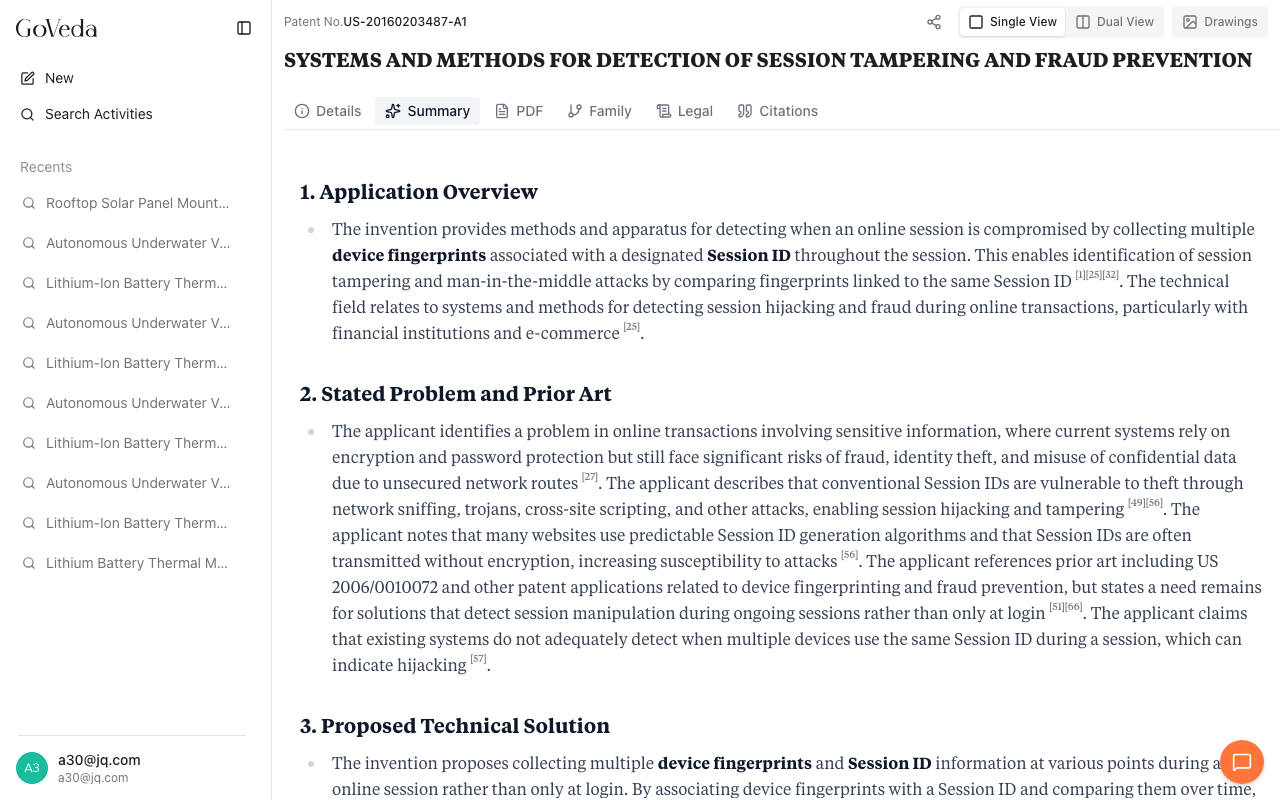
The Summary tab shows an AI-generated analysis of the patent. It includes an application overview, stated problem and prior art context, proposed technical solution, and key technical details. Citations in the summary link back to specific paragraphs, claims, or description passages in the Details tab.
The PDF tab renders the original patent document from the patent office. You can scroll through the PDF in-browser or download it using the download button in the toolbar.
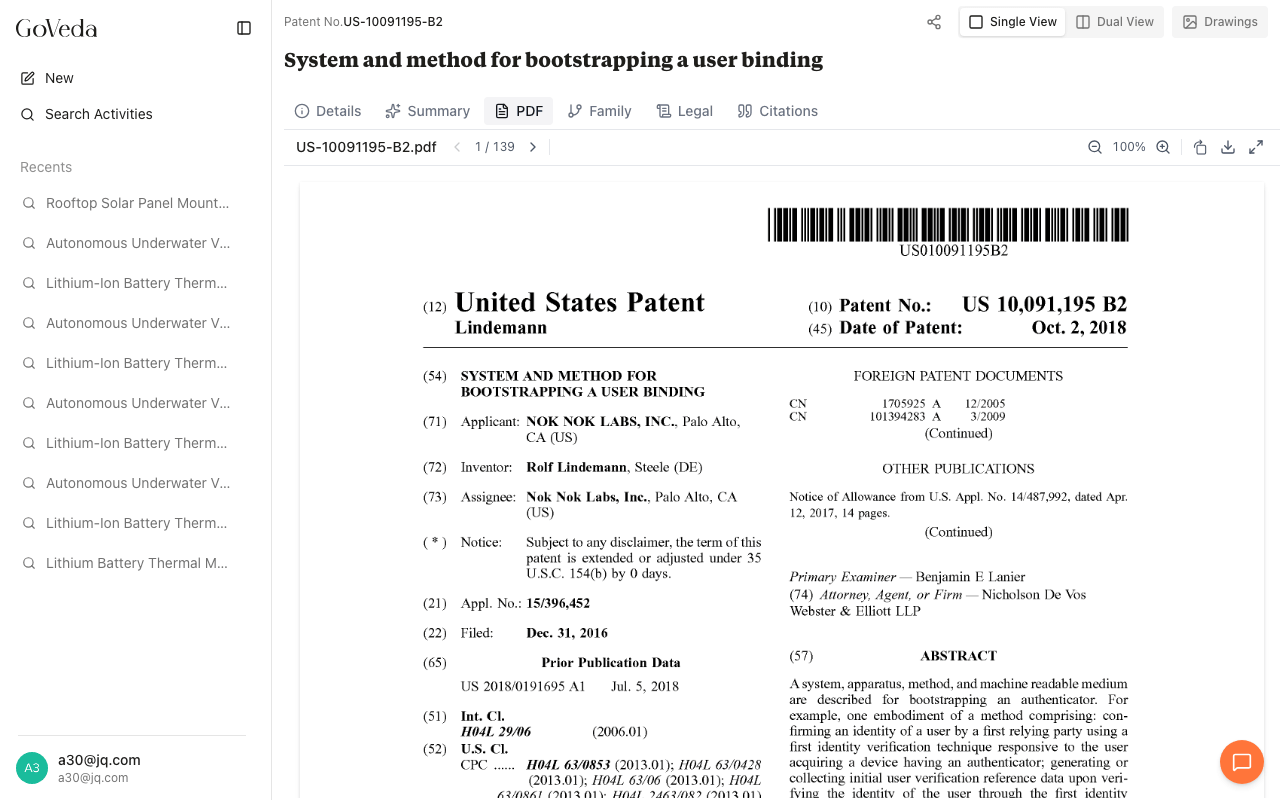
PDF availability depends on the patent office. Some older or non-US patents may not have a PDF available.
Family
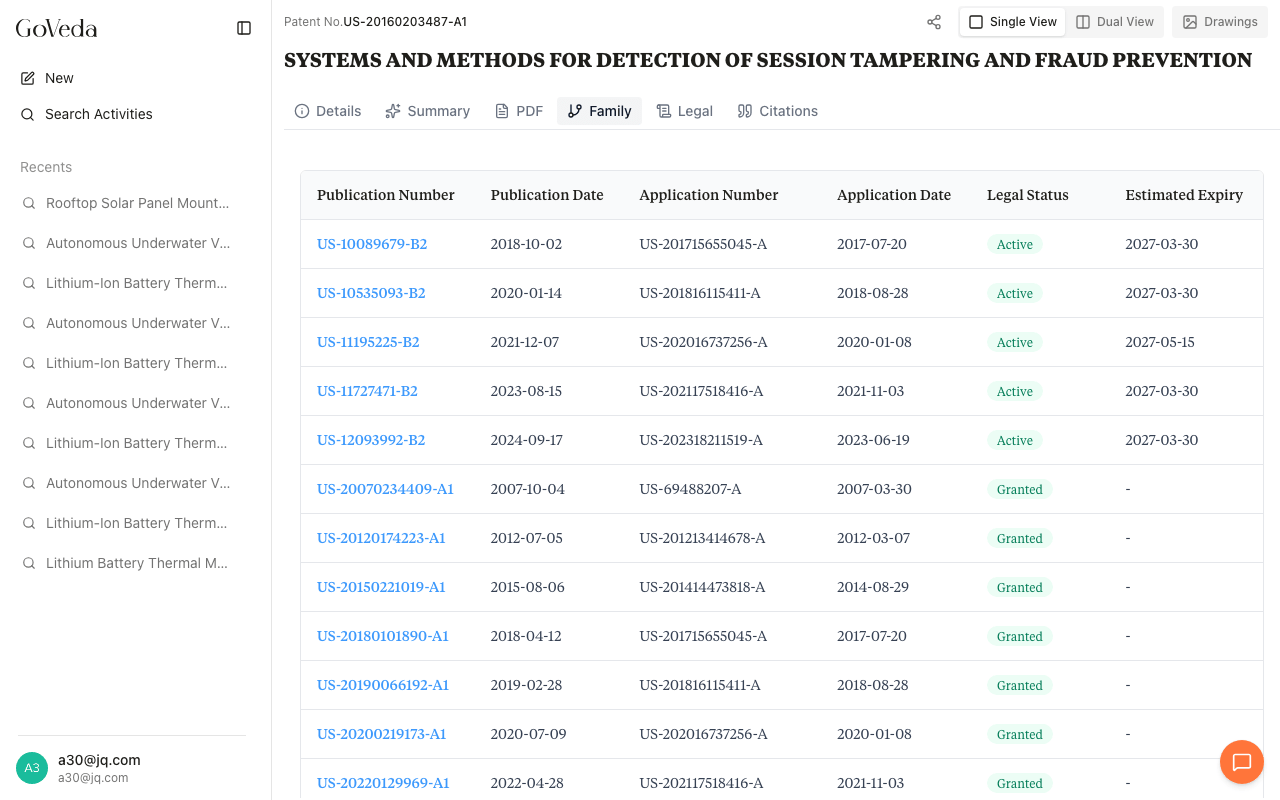
The Family tab lists all members of the patent’s extended family (applications and grants across different jurisdictions that share a common priority). Each row shows the publication number, publication date, application number, application date, legal status, and estimated expiry.
Legal
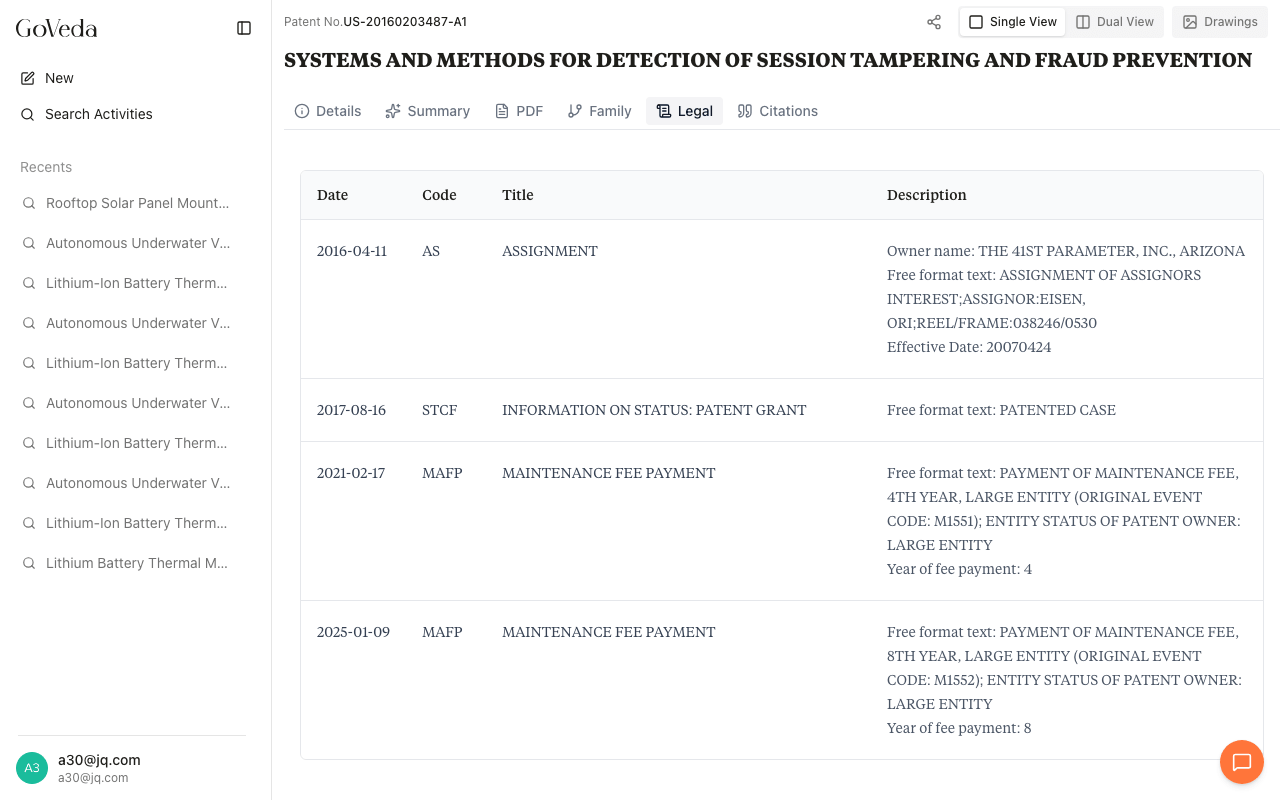
The Legal tab shows the patent’s legal event history sourced from INPADOC. Each event includes a date, an event code, a title, and a description. Common event types include assignment recordings, maintenance fee payments, grant issuance, and lapse notices.
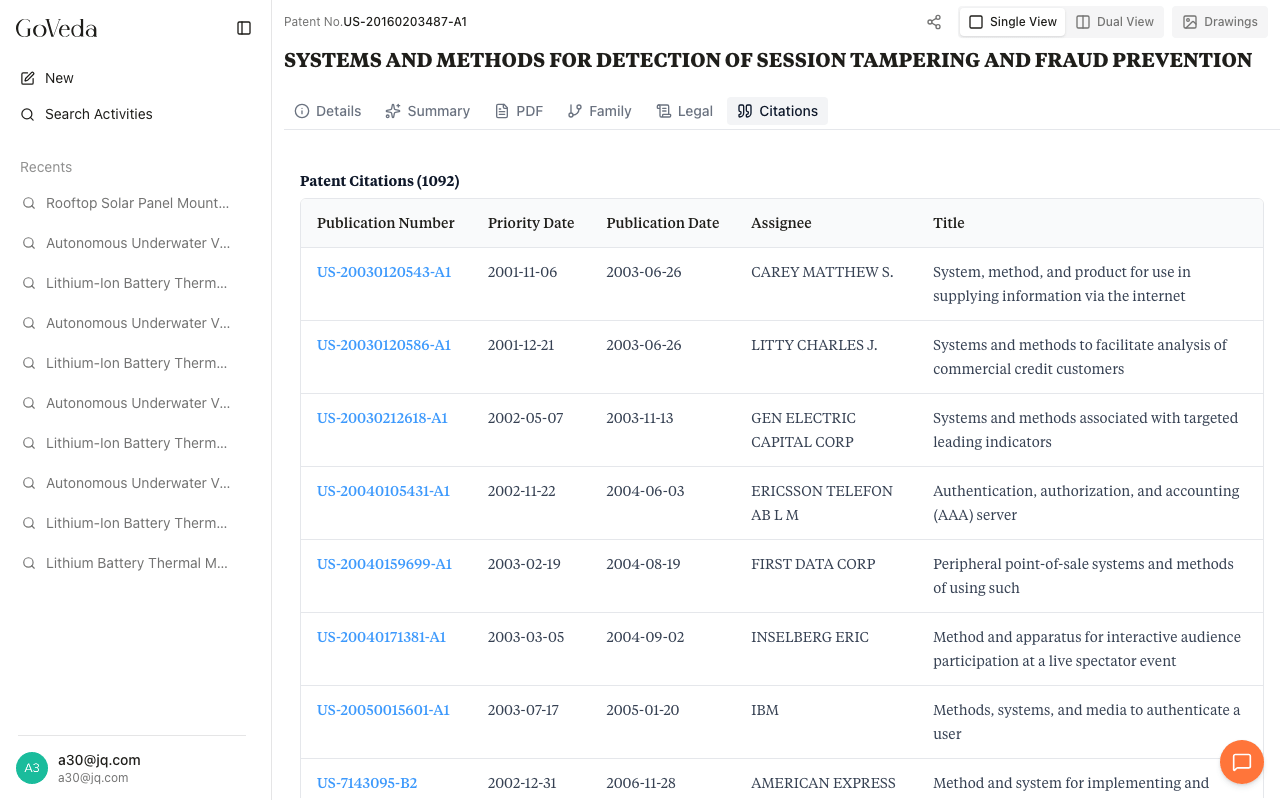
Citations
The Citations tab lists patents cited by or citing this patent. Each citation shows the priority date, publication date, assignee, and title. You can click any citation to open that patent in the viewer.
Drawings
Click the Drawings toggle in the top-right header to open a side panel showing the patent’s figures. Each drawing has zoom controls and a toolbar for navigating between figures. On mobile, Drawings appears as a separate tab.