Building Patent Workflows with GoVeda MCP + Claude
GoVeda’s MCP server lets you search patents, retrieve patent content, and generate patentability reports directly from Claude — without switching between tools. This article walks through setup, available tools, and practical workflows you can use immediately.
What Is MCP?
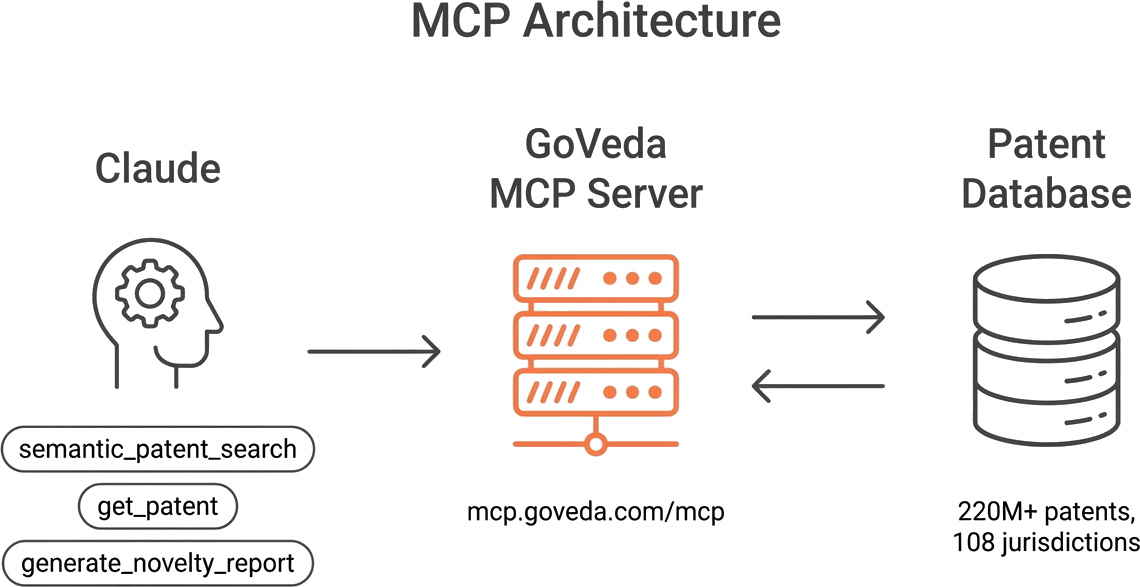
MCP (Model Context Protocol) is an open protocol that connects AI assistants to external tools. Instead of copy-pasting between GoVeda’s web interface and your AI assistant, MCP lets Claude call GoVeda’s patent tools directly. You ask Claude a question about patents, and Claude uses GoVeda’s search, retrieval, and analysis capabilities to answer it.
The GoVeda MCP endpoint is:
https://mcp.goveda.com/mcpSetting Up GoVeda MCP with Claude
Prerequisites
- Claude Code (CLI) or Claude Desktop (app)
- A GoVeda account (free tier works; Pro for full report access)
Configuration
Claude Code:
claude mcp add goveda-patent --transport http https://mcp.goveda.com/mcpClaude Desktop / claude.ai:
- Open Claude Desktop (or claude.ai ) → Settings → Connectors
- Click the + button → Add custom connector
- Fill in:
- Name:
GoVeda Patent - URL:
https://mcp.goveda.com/mcp
- Name:
- Click Add
For full setup instructions including ChatGPT and other clients, see the MCP Server documentation.
Verify connection
The first time Claude uses a GoVeda tool, a browser window opens for OAuth sign-in. Test it:
“Search for patents about solid-state battery electrolytes”
If Claude returns ranked patent results, you are connected.
Available MCP Tools
GoVeda exposes the following tools through the MCP server. Claude discovers them automatically once connected.
Search & discovery
| Tool | What it does |
|---|---|
semantic_patent_search | Semantic search across 220M+ patents by topic or invention description. Returns ranked results. |
prior_art_search | Finds prior art for a given patent publication number. Returns a search ID to poll. |
get_search_status | Checks the status of a prior art search in progress. |
Patent content
| Tool | What it does |
|---|---|
get_patent | Retrieves content for a single patent — abstract, claims, description, dates, parties, classifications, legal status, citations, family. |
batch_get_patents | Retrieves content for multiple patents in one call. |
Reports
| Tool | What it does |
|---|---|
generate_novelty_report | Runs a novelty and patentability assessment for an invention description. Returns a report ID to poll. |
get_report_status | Checks report generation progress. |
get_report_summary | Returns the executive summary, verdict, and patent directory from a completed report. |
get_report_patent_analysis | Returns detailed per-patent analysis for specific patents from the directory. |
Account
| Tool | What it does |
|---|---|
get_usage | Returns your remaining credit balance and billing period. |
start_free_trial | Activates a 14-day free trial with 10,000 credits for new users. |
Example Workflows
Quick prior art check
You have an invention idea and want to know if anything similar exists.
Prompt: “Search for patents about a method for detecting counterfeit pharmaceuticals using Raman spectroscopy of the pill coating. Show me the top 5 most relevant results.”
Claude calls semantic_patent_search with your description and returns the top matches with titles, publication numbers, and relevance scores. From there:
Follow-up: “Get the full claims of the first result.”
Claude calls get_patent to retrieve the claims section, then summarizes what the patent covers.
Deep-dive on a specific patent
You found a relevant patent and want to understand it better.
Prompt: “Get the full details of patent US10,000,001B2 and explain what claim 1 covers in plain language.”
Claude calls get_patent to retrieve the patent content, then summarizes the key claims for you.
Patentability assessment
You are ready for a full analysis before filing.
Prompt: “Generate a patentability report for this invention: a method for reducing thermal runaway in lithium-ion battery packs by embedding microencapsulated phase-change material in the separator layer between cells, where the phase-change material absorbs excess heat during charging cycles and releases it during idle periods.”
Claude calls generate_novelty_report, polls get_report_status until the job is complete, then retrieves the finished report with get_report_summary. The report includes a novelty verdict, key prior art threats, and per-patent comparisons.
Tips for Effective Prompting
Be specific with technical descriptions. “Battery cooling system” returns broad results. “Phase-change material cooling integrated into lithium-ion cell separators” returns precise matches. The more technical detail you provide, the better the semantic search performs.
Ask Claude to explain claims in plain language. After retrieving a patent, ask: “Explain claim 1 of this patent in simple terms” or “What does this patent actually protect?” Claude reads the full text and provides a plain-language summary.
Chain multiple tools. The most powerful workflows combine tools. Search → retrieve → analyze:
- “Search for patents about [your invention]”
- “Get the full text of [the most relevant result]”
- “Compare this patent’s approach to my invention: [your description]”
Include context from earlier in the conversation. Claude maintains conversation context. After searching and reviewing several patents, you can ask: “Based on the patents we’ve reviewed, what is the strongest prior art against my invention?” Claude synthesizes across all the results it has retrieved.
Advanced: Batch Workflows
Compare multiple patents
Retrieve and compare patents side by side:
“Get the details of US10000001B2 and EP3456789A1 using batch_get_patents, and compare their approaches to thermal management.”
Claude retrieves both patents and highlights the key differences in their claims and methods.
Batch-search multiple invention concepts
If you have several invention ideas to evaluate, run searches for each in a single session:
“I have three invention concepts to evaluate. Search for prior art on each:
- A drone-based system for inspecting wind turbine blades using thermal imaging
- A method for predicting bearing failure in industrial motors using vibration harmonics
- A self-healing concrete that uses embedded bacteria to fill micro-cracks”
Claude runs three separate searches and summarizes the prior art landscape for each.
Export results for team review
Ask Claude to format results for sharing:
“Summarize the top 10 results from our search in a table with columns: publication number, title, assignee, filing date, and one-sentence summary.”
Copy the table into a document or spreadsheet for team discussion.
Disclaimer: GoVeda’s MCP tools are intended to assist patent research and do not constitute legal advice. AI-generated patentability assessments and prior art analyses should be reviewed by qualified patent counsel before making filing, licensing, or litigation decisions.